04 Debugging with UI Mode and traces
Goal
Debug interactively in UI Mode, use Copy Prompt with a coding agent, and open a trace for post-mortem analysis.
Read first
- UI Mode
- Trace Viewer
- AI testing guide (heal policy and traces)
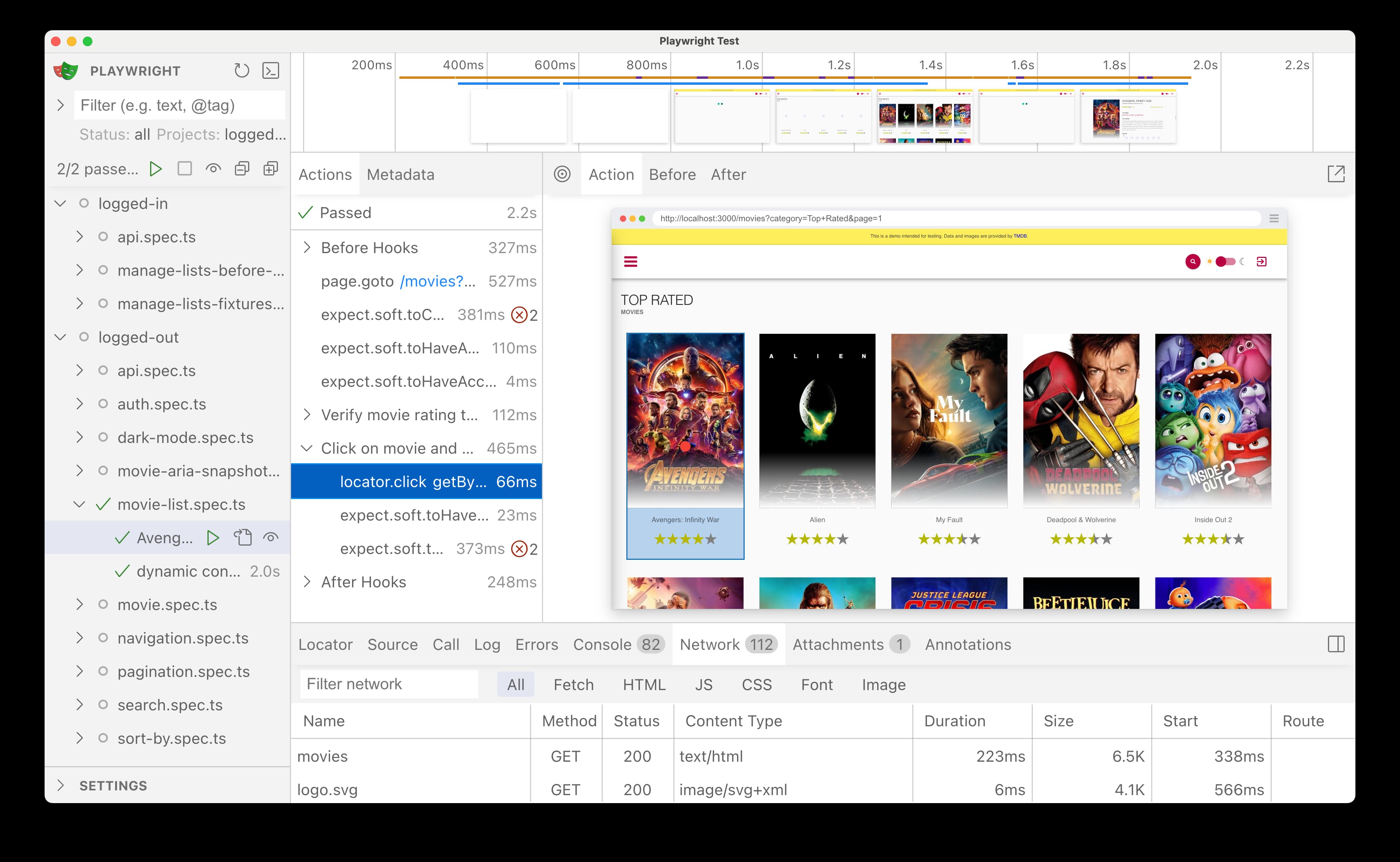
UI Mode
bash
npx playwright test --uiFilter projects in the sidebar (chromium, logged-in chrome, etc.). Run one test, click actions in the timeline, and time-travel through page snapshots.
Practice: intentional failure lab
Use the checked-in lab instead of editing a teaching spec:
- Open
tests/logged-out/lessons/debug-intentional-fail.spec.ts. - Remove
test.fixmeso the test runs. - Run with a forced trace:
bash
npx playwright test tests/logged-out/lessons/debug-intentional-fail.spec.ts --project=chromium --trace on- Open the trace (
npx playwright show-trace test-results/.../trace.zipornpx playwright trace open+trace actions). - In UI Mode, open the Errors tab and try Copy Prompt with a coding agent if you want.
- Fix the snapshot heading to
"Twisters", re-run green, then restoretest.fixme(or leave your fixed version local without committing).
Traces
Config sets trace: 'on-first-retry'. You can also force a trace on a passing file:
bash
npx playwright test tests/logged-out/search.spec.ts --project=chromium --trace onbash
npx playwright show-trace test-results/.../trace.zip
# or
npx playwright trace open path/to/trace.zip
npx playwright trace actions
Heal using trace or snapshot evidence, not blind locator retries.
Done when
- UI Mode opened at least once (
npx playwright test --ui). - You inspected a failure or a trace before changing an assertion.
- The intentional-fail lab was run with
--trace on(then fixed or re-fixmed).
Key takeaways
- You can step through a test in UI Mode.
- You have used Copy Prompt or a trace at least once.
- You will not change locators without looking at a snapshot or trace first.
Next: 05 Tags or jump using the course home.